Add an email account to your iPhone, iPad, or iPod touch
There are two ways you can set up an email account in the Mail app on your iOS device — automatically or manually. Learn which option is best for you.
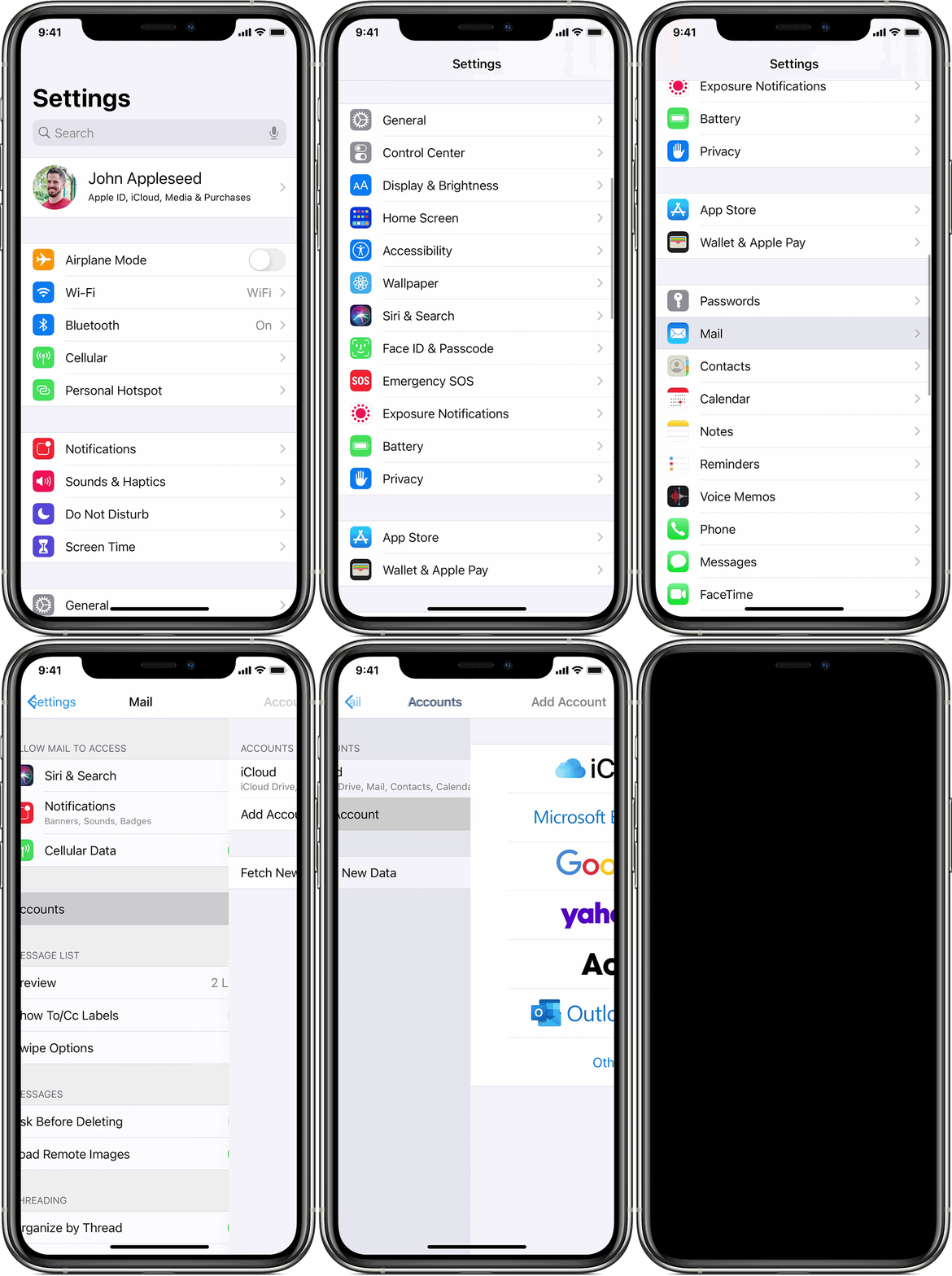
How to set up your email account automatically
If you use an email provider like iCloud, Google, or Yahoo, Mail can automatically set up your email account with just your email address and password. Here's how:
- Go to Settings > Mail, then tap Accounts.
- Tap Add Account, then select your email provider.
- Enter your email address and password.
- Tap Next and wait for Mail to verify your account.
- Choose information from your email account, like Contacts or Calendars.
- Tap Save.
If you don't see your email provider, tap Other to add your account manually.